


Teach a vendor once. The next match follows.
Save a keyword and a ledger. Matching rows that are still pending update straight away, and future uploads use the rule.
What it does
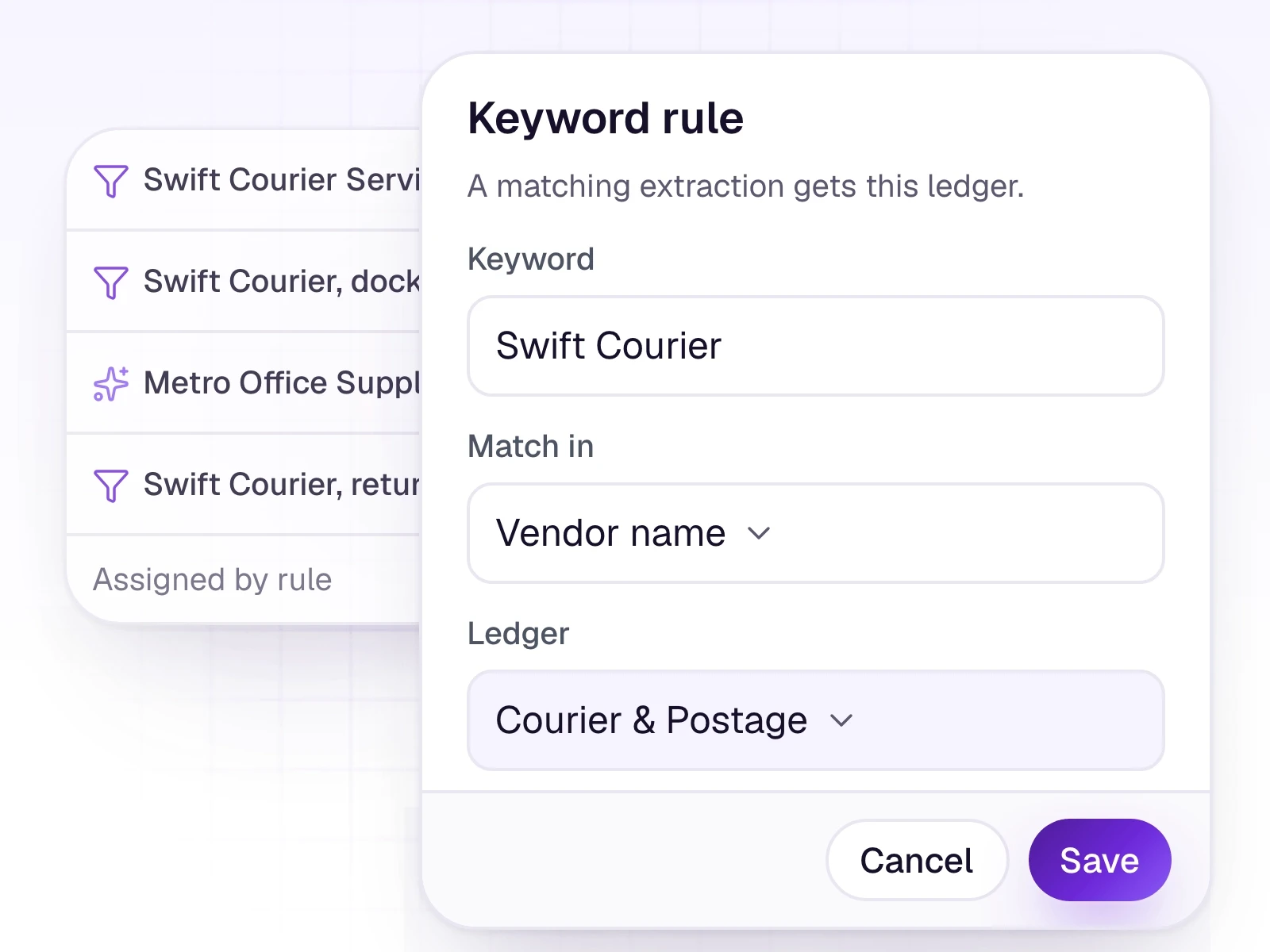
A rule matches a keyword in the description or the vendor name, then assigns the ledger you picked. You create it from Review: Add rule in the toolbar, or Save as keyword rule from a row's ledger cell.
Assigning a ledger by hand also remembers that supplier. That vendor memory works without a rule. Rules are created and used from Review. A separate screen that lists every saved rule is not part of the product today.
What it includes
Remember a ledger for a word in the description or the vendor name.
- Match on description or vendor name
- Pending rows update as soon as you save the rule
- Future uploads with the same keyword follow it
- Vendor memory when you assign a ledger by hand
Three steps
The short version of how a team uses it.
- 1
Start from Review
Choose Add rule, or open a row's ledger cell and choose Save as keyword rule.
- 2
Set the match
Enter the keyword, choose Description or Vendor name, and pick the ledger.
- 3
Save
Pending matches update now. The next upload with that keyword uses the same ledger.
Common questions
Straight answers about this part of AutoBooks.

Try Keyword rules
Create a workspace and try this with your own files. Every new workspace includes a 7-day free trial.